Bootloader unlock guide
Requirements:
A computer (Windows/macOS/Linux recommended)
A cable for connecting the phone to the computer
Unlocking the bootloader on your phone lets you use fastboot's flashing feature which can be used to install a custom firmware or reinstall the original firmware. Having an unlocked bootloader does not make your phone less secure.
[#] While in an unlocked state, you will see a warning on your screen every time you turn the phone on.
[#] This action can be reverted. See how at the end of the page
[#] The author of this tutorial is not responsible for any damages. Do this at your own risk
If you are on Linux or macOS, or are an experienced user, use the portable version.

Open the tool after installing and check the shortcut creation option at the end for later use.
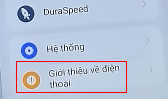
Open the Settings app and enter the "About" section
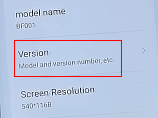
Tap on the "Version" section
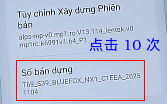
Tap on the "Build number" section 10 times
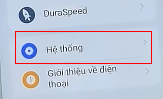
Go back to the main section, then go to "System"
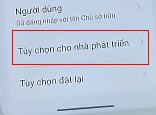
Scroll down to the bottom and tap on the "Developer Options" section
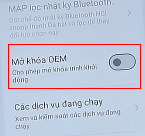
Flip the "OEM unlock" switch
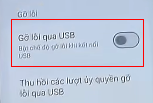
Flip the "USB debugging" switch
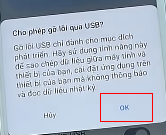
Open a Command Prompt
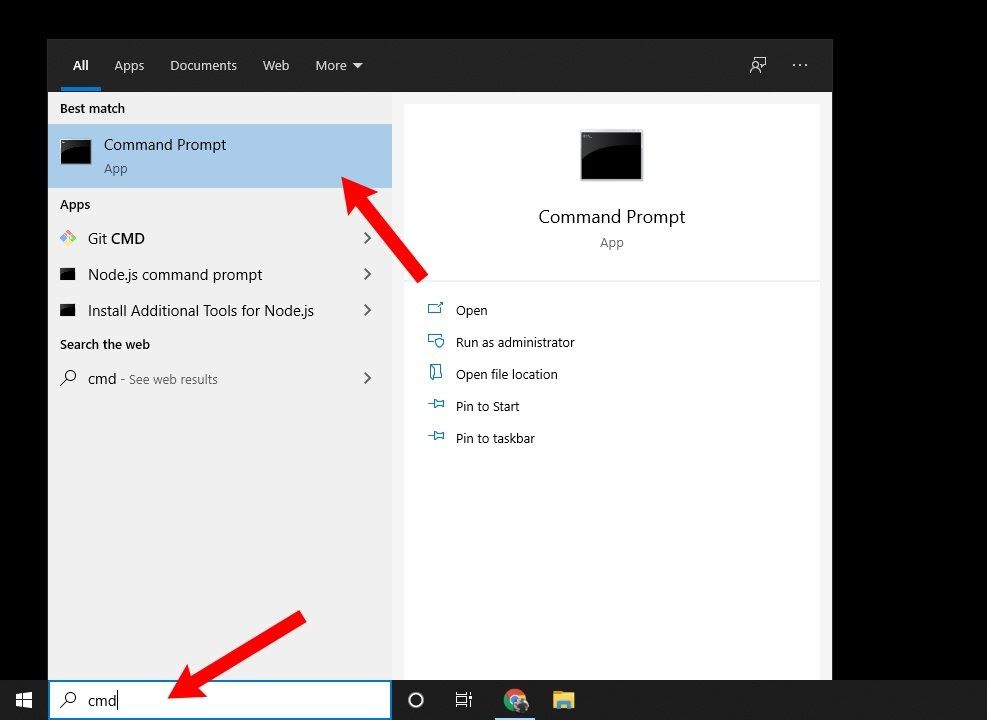
Type in "adb devices"
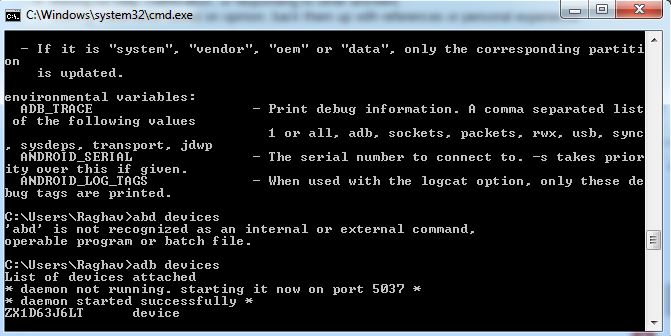
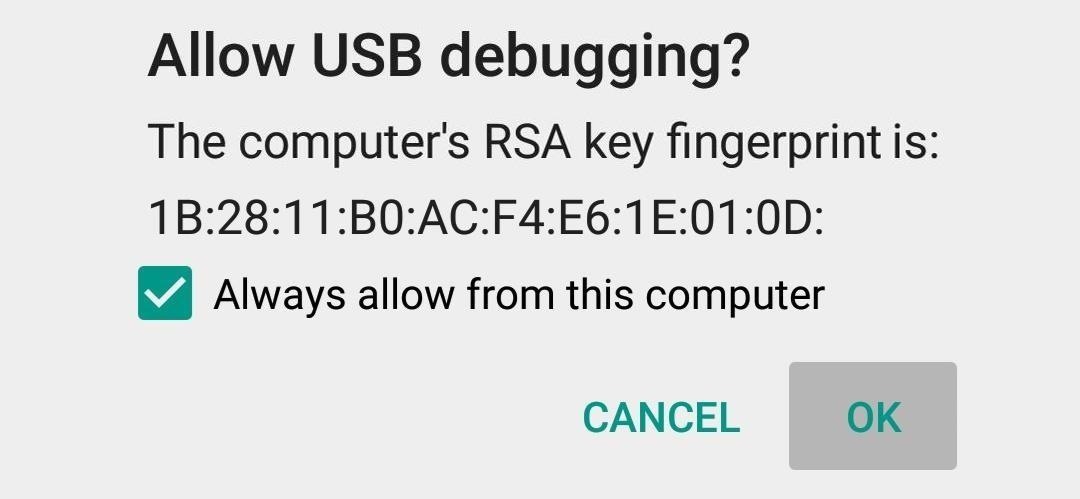
At this point, if not earlier, you should see a popup prompt on your phone asking for permission to connect with the computer. Accept the prompt.
In the command prompt, type in the following command:
adb reboot bootloader
Now verify whether your device is recognized and in the right mode:
fastboot devices
The command should return your device identifier along with the mode it is in (fastboot). If it is not detected, try replugging your cable.
Type in this command and immediately press the VOLUME UP button on the phone afterwards.
fastboot flashing unlock
To verify whether you succeeded:
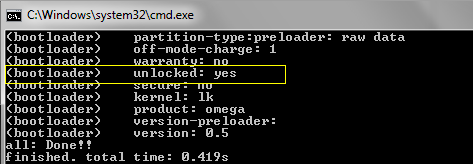
fastboot getvar all
You should be seeing "(bootloader) unlocked: yes" along the lines.
Only do this if you have reinstalled the original software on the phone with the correct region.
This removes the warning during startup and restores your device's "safety" for bank apps, etc.
Just like with unlocking, you will need to quickly press the volume up button after entering the command.
fastboot flashing lock
If you found this guide useful, please consider donating. ;)