Firmware restore/downgrade guide
Requirements:
A computer (Windows/macOS/Linux recommended)
A cable for connecting the phone to the computer
An unlocked bootloader
This is an alternative method using Fastboot instead of SPFT.
[#] The author of this tutorial is not responsible for any damages. Do this at your own risk
[#] Under specific circumstances, you will be forced to perform a factory reset, which will erase your user data.
If you are on Linux or macOS, or are an experienced user, use the portable version.

Open the tool after installing and check the shortcut creation option at the end for later use.
If your device is bootlooping, you can get it into a powered-off state for a short amount of time by force rebooting by holding POWER + VOL DOWN, then follow with the combination from the next instruction immediately.
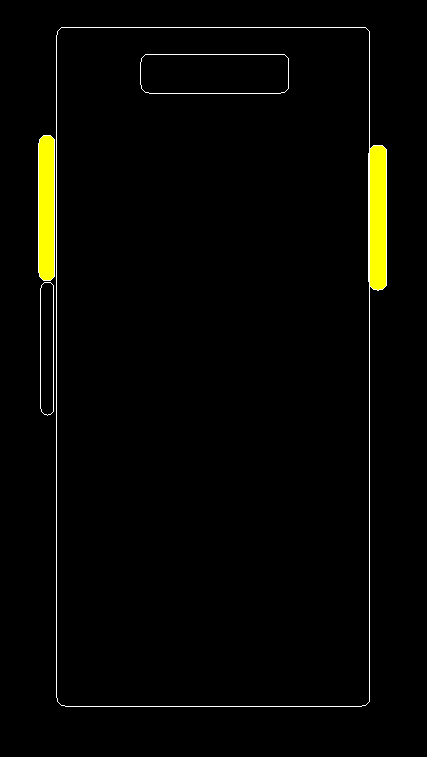
When the phone is off, hold both the power button and the volume up button until you see a 3-option text menu on the screen.
When holding, you must start with the power button, then the volume up button!
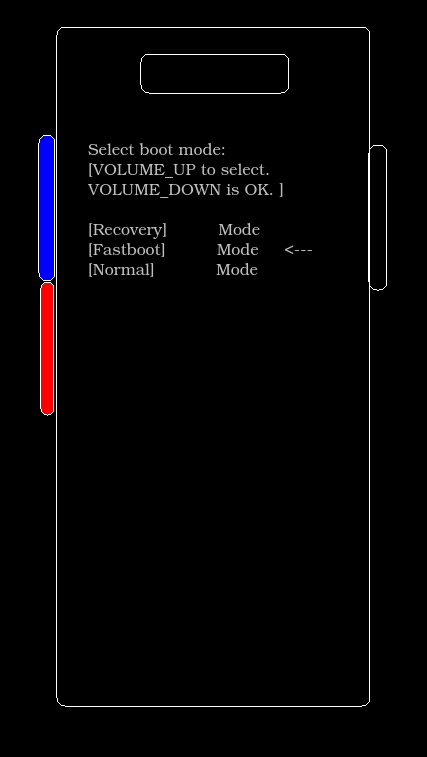
When in the 3-option menu, use the volume up button to navigate to the "Fastboot" option, and use the volume down button to confirm.
If the file is not recognized, download 7-Zip. Extract the archive to a folder
For Windows users:
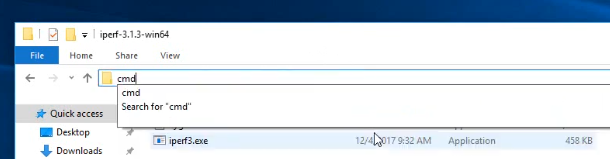
Click on the path bar inside the folder
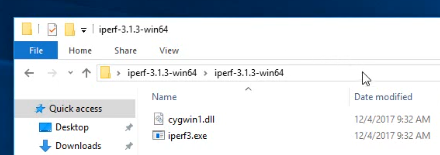
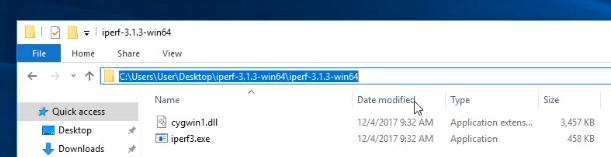
Clear the path bar, type in "cmd" and hit enter
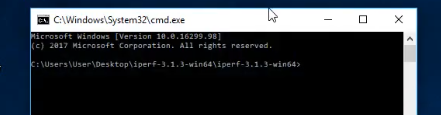
A command prompt window should open in the path where you have the files
fastboot flash vbmeta vbmeta.img
fastboot reboot fastboot
fastboot flash super super.img
You might also want to flash boot.img if you have previously rooted your phone.
fastboot flash boot boot.img
Now verify if the phone starts up correctly.
fastboot reboot
If it does not start, you will have to redo step 4 and do a FACTORY RESET
This will ERASE ALL YOUR DATA!
fastboot erase userdata

fastboot reboot
Only do this if you verified that your phone is booting correctly and you installed the right version for your model.
This removes the warning during startup and restores your device's "safety" for bank apps, etc.
Just like with unlocking, you will need to quickly press the volume up button after entering the command.
fastboot flashing lock
If you found this guide useful, please consider donating. ;)