Android 17 (GSI) guide
Requirements:
A computer (Windows/macOS/Linux recommended)
A cable for connecting the phone to the computer
Having followed the bootloader unlocking tutorial
This method lets you install the latest Android version on your Bluefox NX1. This guide should also work for any upcoming release (e.g Android 18).
The benefits are a newer version + security patch, greater performance, better battery life, less heating, and the ability to escape some bugs that might be in the official firmware
[#] This will erase your data. The author of this tutorial is not responsible for any damages. Do this at your own risk
[#] No OTA updates. You will have to update manually using your computer.

For Windows users: Double click the file and drag the contents out into a folder

Now open the a terminal with ADB & Fastboot working.
(Windows users should use the shortcut on their desktop from the bootloader unlock guide)
adb reboot bootloader
fastboot devices
The command should return your device identifier along with the mode it is in (fastboot). If it is not detected, try replugging your cable.
fastboot flash vbmeta vbmeta.img
fastboot reboot fastboot
Wait for around 10 seconds for the phone to get into this mode.
fastboot delete-logical-partition product

fastboot erase system_a

fastboot flash system_a system.img

fastboot --set-active=a
fastboot erase userdata
fastboot reboot
If everything was done right, you should see the Bluefox boot logo followed by an Android boot logo. You will also see the unlocked bootloader warning on the first screen.


Open Settings, go to About and continuously tap the "Build number" until you get the notification confirming that you've enabled Developer Options.
Now go to System -> Developer Options, find "USB debugging" and enable it.
Now verify that your device is recognized by ADB on your computer.
adb devices
A popup prompt might appear on your phone which you will have to accept in order to give permissions.
Download, extract and run scrcpy. This will let you control your phone directly from your computer and easily install apps.
Now download a web browser of your choice on the computer, then drag the APK file into the screen mirroring window (scrcpy) to install it on your phone.
Cromite is a de-googled "Chrome" fork with built-in ad blocking.
You should now be able to install apps on your phone directly through the web browser you installed.
As you might have noticed, the status bar is mispositioned because of the phone's special "dynamic island" cutout. To fix this you will need to root the phone and use an app to change the status bar's proportions.
Find and download the correct boot.img file for your device.
Download APatch
Drag and drop the downloaded APK file into the scrcpy window.
Open a terminal in the folder with the downloaded boot.img file and reboot the phone into bootloader mode:
adb reboot bootloader
Flash the patched boot image onto the phone and reboot:
fastboot flash boot boot.img

fastboot reboot
Now open the APatch app on your phone, and enter bluefoxnx1 as the password.
If everything was done right the phone should now be rooted and APatch should say so.
Download and install Iconify on the phone.
Open APatch again and grant permissions to Iconify from the superuser tab (shield icon).
Open Iconify, go to Tweaks -> Statusbar and change the proportions of the statusbar to your liking.
For the best experience, it is recommended to set the display scale lower from the Settings app, so that the status bar icons do not get covered by the dynamic island.
Download the ZIP file from the link below:
Transfer it to your phone by dragging the file into your scrcpy window.
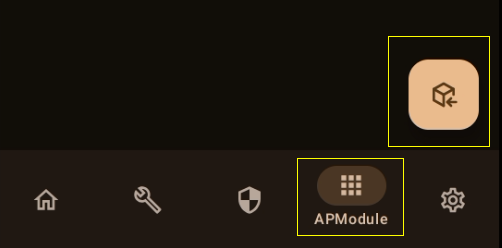
Open the APatch app, enable APModule support if it isn't already, go to the APModules section and flash the file.
After restarting your phone, you should now have Bluetooth working, UI blurs enabled and the correct device model set. This patch also disables MiraVision for good.
Whenever a new Android version comes out, you will have to update manually from your computer, by reflashing system.img with the new one:
adb reboot fastboot

fastboot flash system system.img

fastboot reboot
If you found this guide useful, please consider donating. ;)